
Cross Connect has both a company directory and a personal directory. The company directory can be updated by any user with the office manager scope and the contacts within will be available to all users. Personal directories can be modified by users within their own portal login with the contacts only being visible to themselves.
Any contacts added to the system will be pushed through to deskphone devices (for supported models), the Cross Connect web app, mobile app, attendant console and the Contacts panel of the user portal.
When a device recieves a call from a known contact, their contact name will be displayed alongside the callerid.
Adding Contacts
- Company Directory
- Personal Directory
Only users that have the Office Manager scope and higher can update shared contacts.
To manage your company contacts first log in to the Cross Connect portal and navigate to the Users section of the portal.
Within the users panel, press “Shared Contacts“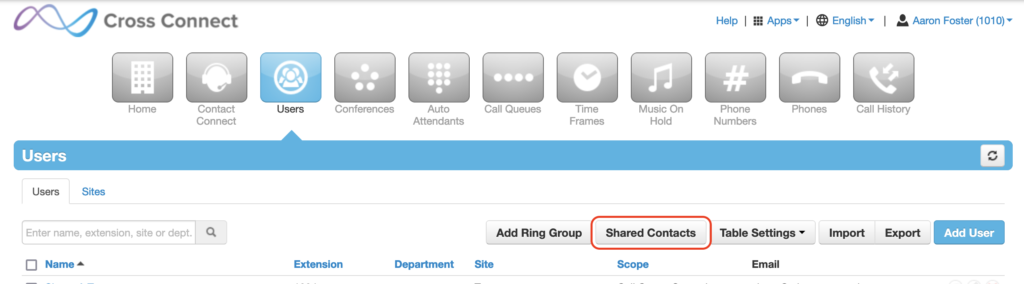
Press “Add Shared Contact“
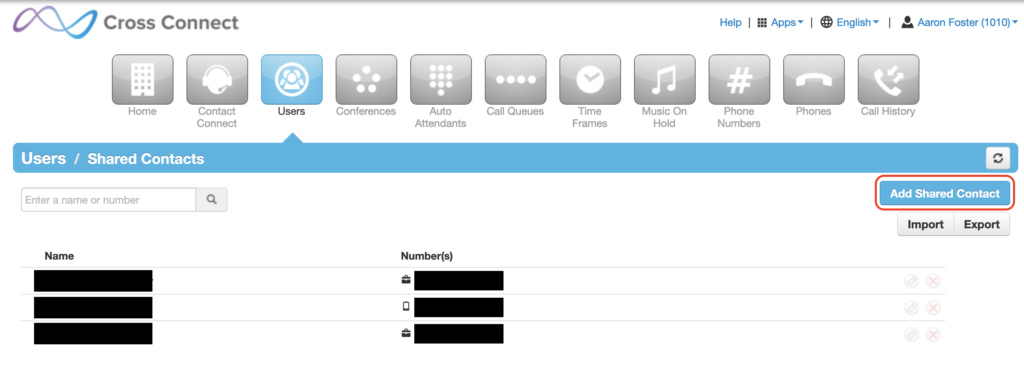
From the shared contact panel, add the contacts information and press save. If you’d like to add another contact immediately after press the icon on the right of save to access the “Save and add another” option.
To manage your company contacts first log in to the Cross Connect portal and navigate to the Contacts section of the portal.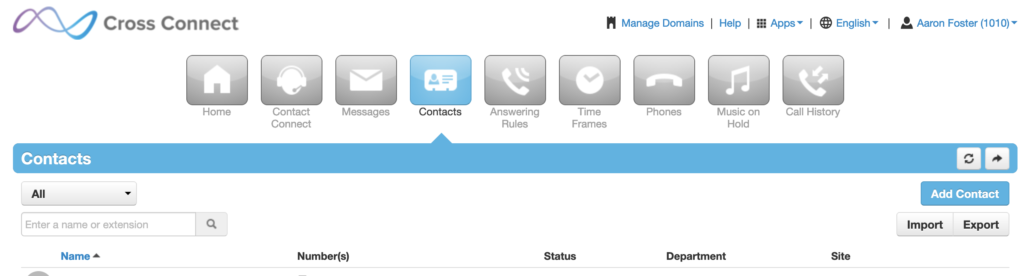
From the contact panel, add the contacts information and press save.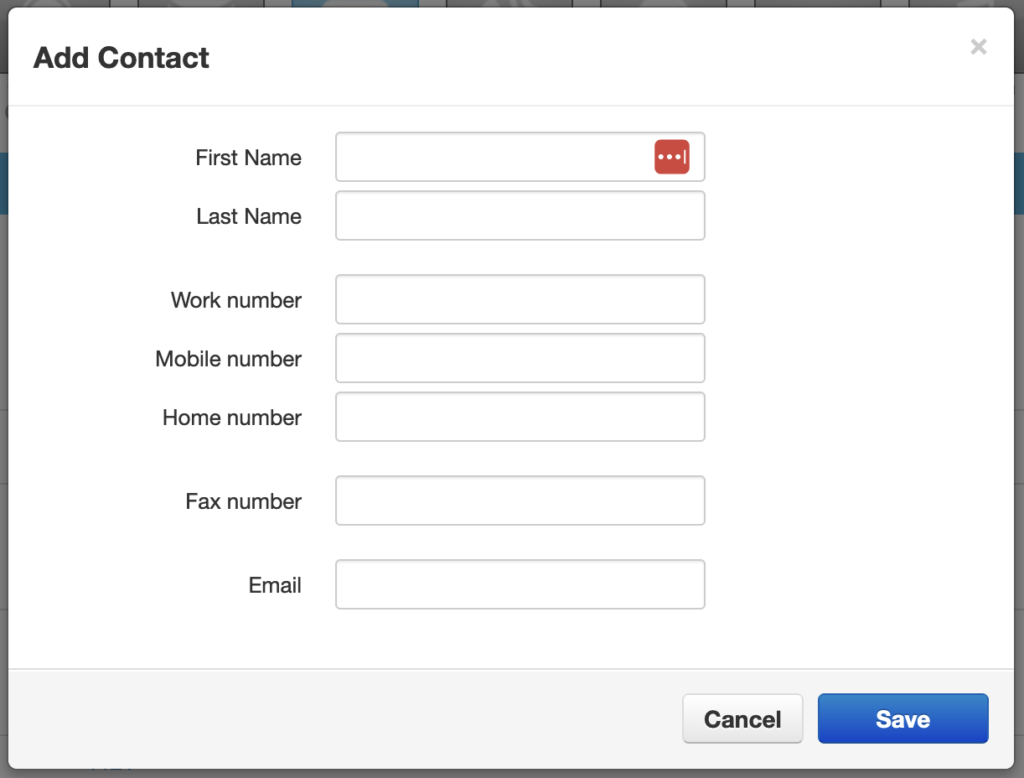
Importing Contacts
The import function enables easy migration of exported contacts from Google Contacts, Outlook or Apple vCard.
An example CSV has also been attached to this article if you’d like to generate your own bulk import file.