
The recording of calls can be done on a per User AND per Device basis. Since a queue belongs to a User Cross Connect can be instructed to record all calls for that User, thus any call made to that call queue will be recorded, regardless of the device which answers the call. This means that calls that come to an agent are recorded as a function of their assignment to a queue but calls that come directly to them are NOT recorded unless specifically configured.
Configuration – Manager Portal
- Once logged in to the Manager Portal with the appropriate scope that allows you to view call queues; navigate to the Call Queues section within the required domain.
- Click the Call Queue name under the Name column. This will load a modal box similar to the one shown below.
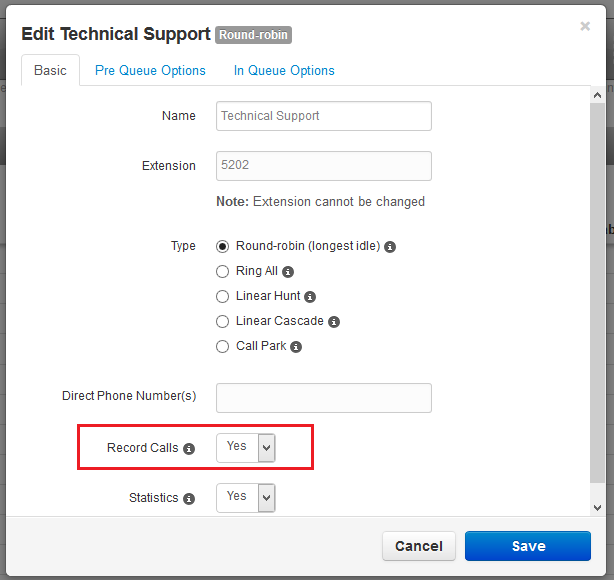
- Set the value of the Record Calls field to Yes from the drop-down menu.
- Click the Save button in the bottom right corner. You will be taken back to the Call Queues page.
- Calls coming into this Queue will now be recorded.