
Analytics (also known as a ‘Wall Board’) allows you to manage, share, and customise Queue/Agent statistics dashboards in one convenient location.
How to access Analytics
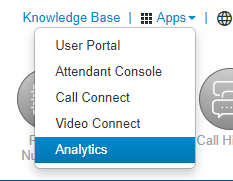
Analytics is accessible for Contact Centre Supervisors and Agents (depending on the Subscription type) by clicking on the ‘Apps’ drop-down menu found in the top right-hand corner of the Manager Portal page, and selecting ‘Analytics.’
The Analytics page provides the user with a toolbar for easy customisation and creation of ‘cards,’ which are individual windows containing the queue statistics of your choosing. These cards will populate the Analytics page, referred to as a ‘Board.’
Manage Boards
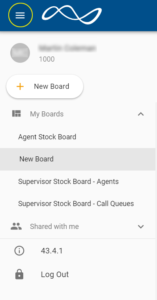
Select the ‘hamburger’ menu item (3 horizontal lines) to view and manage boards and access boards shared with you, share boards, check the version number, and log out
Create a new board
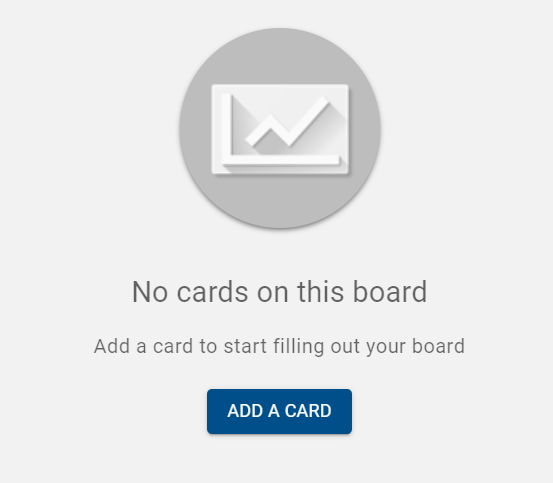
Select “+ New Board” from the hamburger icon menu to begin to create a new board
The screen will change to allow you to begin building the board.
Edit an existing board

When an existing board is open various menu items are available in the top bar, from left to right:
- Edit Board
- Copy Board (this creates a duplicate that can then be edited as required)
- Delete Board
- Board Settings (The filters option within Board Settings allows you to view data only for a selected queue)
- Favourite Board (this creates a new Favourite section in the hamburger icon menu)
- Share Board
- Enter Full Screen (this is useful if displaying the wall board on a screen on a wall in a Contact Centre, for example)
- Access other Cross Connect apps
How to create a new card
Creating a new card involves selecting the type of card, the data to be displayed, and if you wish to customise the card further you can modify the style of each card.
1. For a new board click ‘Add a Card‘ in the centre of the screen

2. For an existing board select ‘Edit Board‘ in the top menu then ‘+‘ to Add Card

3. A new blank card will appear, and to modify the card, select ‘Choose Type.’

4. Select the Type of card you wish to use. This option dictates how the information will be displayed.

5. Once selected, click the ‘Data‘ tab and then select ‘+ Add Data.‘
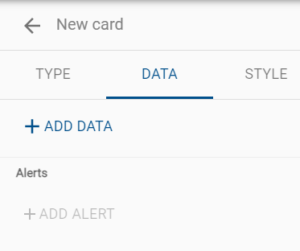
Additionally, alerts can be added through the ‘+Add Alert‘ button.
Alerts allow you to trigger colour change or browser notifications when a monitored data set crosses a specific threshold. See under Board Settings in the Analytics menu bard.
6. Select the Data you wish to be displayed in the card from the list presented.
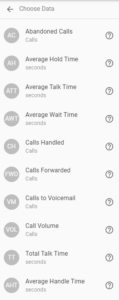
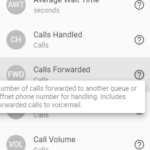
Nearly all data types will include a help bubble that provides a description of the information.
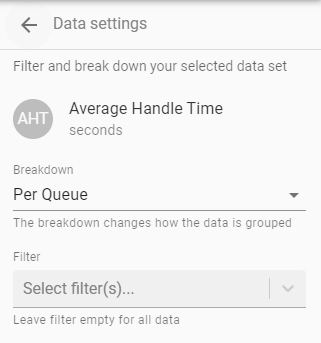
7. Once the data type is selected, the card can be created by clicking the green ‘tick’ button, however, there are additional breakdown and filter options depending in the right-side menu, as seen in the example below.
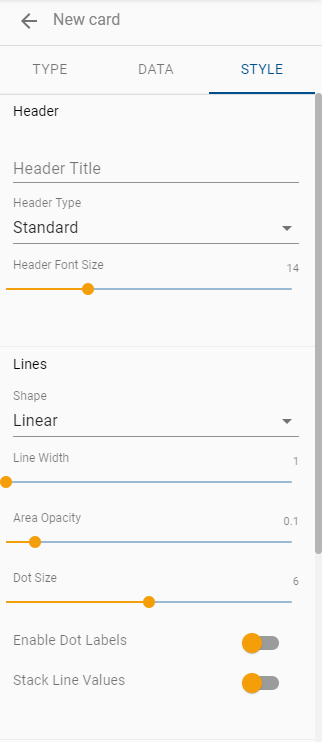
8. If required amend select ‘Style’ to change the name of the card (Header Title) and amend the look of the card
9. Once added the card will appear on the board, at which point you can still continue to add or edit cards. Once all changes are complete, click the ‘Save’ button at the top of the screen.

Analytics Card Types
Each variety of card type can only be used to display certain types of data.
When creating a new card, you are able to select the type, data, and style of how the information is displayed. Each card type can be used with specific data or reports, but not all card types can be used with all types of data.
The Line Chart Card Type is compatible with the following data/report types:
- Abandoned Calls
- Average Hold Time
- Average Talk Time
- Average Wait Time
- Calls Handled
- Calls Forwarded
- Calls to Voicemail
- Call Volume
- Total Talk Time
- Average Handle Time
- Peak Active Calls
- Calls Waiting
- Abandon Rate
- Service Level
The Gauge Card Type is compatible with the following data/report types:
- Active Calls
- Calls Waiting
- Longest Wait
- Agents Online
- Agents Idle
- Abandoned Calls
- Average Hold Time
- Abandon Rate
- Average Talk Time
- Average Wait Time
- Calls Handled
- Calls Forwarded
- Service level
- Total Talk Time
- Calls to Voicemail
- Call Volume
- Custom Data Source (Provide data via a web resource)
The Single Stat Card Type is compatible with the following data/report types:
- Active Calls
- Calls Waiting
- Longest Wait
- Agents Online
- Agent Idle
- Abandoned Calls
- Average Hold Time
- Abandon Rate
- Average Talk Time
- Average Wait Time
- Calls Handled
- Calls Forwarded
- Service Level
- Total Talk Time
- Calls to Voicemail
- Call Volume
- Custom Data Source (Provide data via a web resource)
The Table Card Type is compatible with the following data/report types:
- Agents
- Call Queues
- Calls Waiting
- Custom Data Source (Provide data via a web resource)
The Grid Card Type is compatible with the following data/report type:
- Agents
The Note Card Type is just a custom note.
The iFrame Card Type needs to include the iFrame URL.
Once configured, a user can create a custom dashboard to easily view different queue statistics.