
The call transfer feature is used to move an active phone call from one extension to another and is one of the most commonly used features in business telephony.
A call transfer can be done via two methods, an “attended” transfer where the transferee can announce the call to the recieving party or via a “blind” transfer where the call is immedietly presented to the recieving party.
Attended/Assisted transfer
An attended transfer will first call the new party, where you can then announce the call. If the recieving party is able to take the call the transfer key can be pressed which will complete the transfer.
However If the recieving party hangs up the call or you press the “end call” key, the call that is being transferred will remain on hold where it can then be dealt with accordingly.
An attended transfer is ideal if you are unsure if the other party is able to take the call, if the call goes unanswered i.e overflows to voicemail the call can be retrieved and redirected elsewhere.
How to perform an attended transfer
- Yealink Handset
- Cross Connect Mobile
- Call Connect Web
Step 1: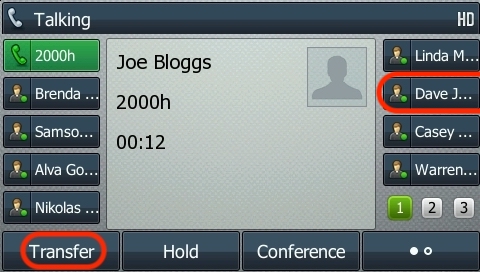
Whilst on an active call, initiate a new call to the person you would like to transfer the call to by pressing their BLF key.
Alternatively if you don’t have a key for them, or would like to transfer the call to an external number press the “Transfer” softkey or the physical transfer button on the handset and then dial the extension/number and press “Call”.
Step 2:
Announce your call to the recieving party, if they are unable to take the call or unavailable they can hang up their end or you can press the “Resume”/”Swap” key to pickup the call once again.
Step 3: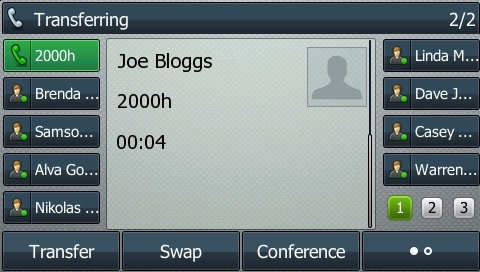
Complete the transfer by putting the reciever down or by pressing the transfer button or softkey once more.
The screenshot below was taken on an Apple device; the styling may look different for different models and Android devices but the method remains the same.
Step 1:
Whilst on an active call, initiate a new call to the person you would like to transfer the call to by pressing the ‘Attended Transfer’ button
Step 2:
You will then get a prompt to ‘Dial to Transfer’ -> either select from Contacts, Quickdial or dial a number. Once the call connects speak to your contact/colleague to advise them what the call is about.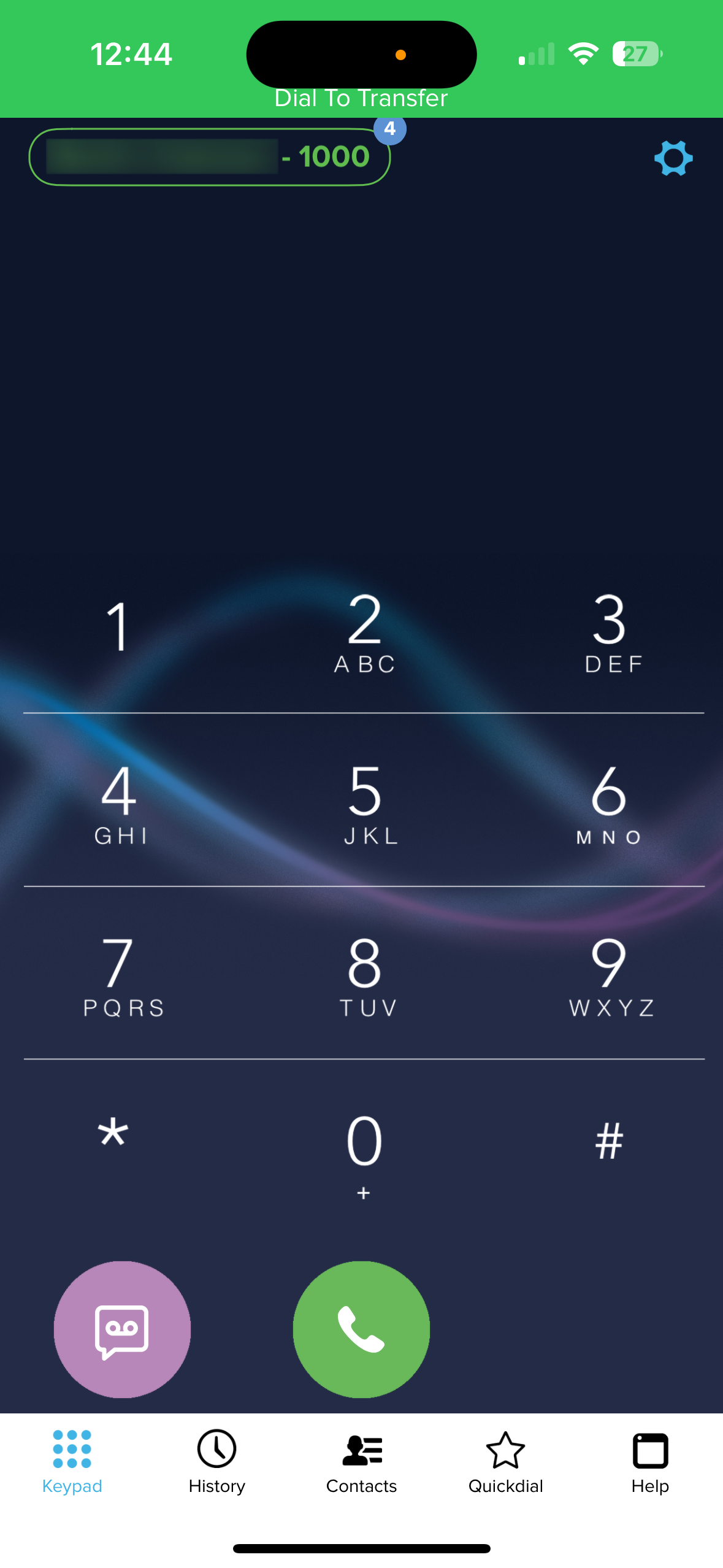
Step 3:
Select ‘Transfer‘ to complete the transfer of the call.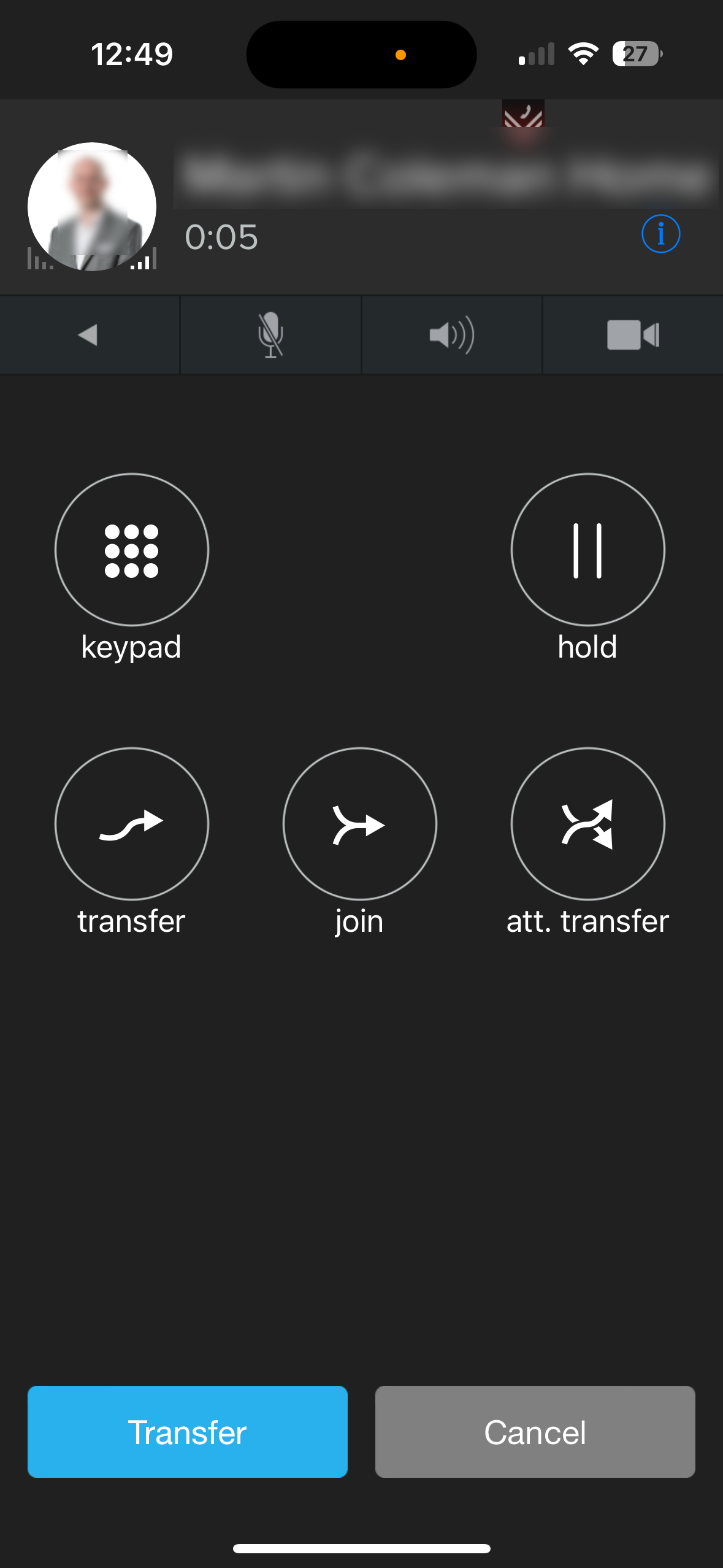
Coming soon
Blind/Cold transfer
A blind transfer will immediately transfer a call to the dialled party.
A blind transfer is ideal for use in open office spaces where the other party is already expecting a call to come through to them.
How to perform a blind transfer
- Yealink Handset
- Cross Connect Mobile
- Call Connect Web
Whilst on an active call, press the transfer softkey or the transfer key on your handset and dial the extension or number you’d like to transfer to.
Press the “BTransfer” button to blindly transfer the call to the other party, or press “Call” and then hang up the phone to transfer the call immediately.
The screenshot below was taken on an Apple device; the styling may look different for different models and Android devices but the method remains the same.
Step 1:
Whilst on an active call, initiate a new call to the person you would like to transfer the call to by pressing the ‘Transfer’ button.
Step 2:
You will then get a prompt to ‘Dial to Transfer’ -> either select from Contacts, Quickdial or dial a number.
Step 3:
Select ‘Transfer‘ to complete the transfer of the call. Note: with Blind Transfer you will not speak to your contact/colleague before the call is transferred.
Coming Soon