
Cross Connect is a “unified communications” system allowing you to make and receive calls in a variety of ways. Calls can be made via any of:
Call Connect – a WebRTC browser based softphone
Cross Connect Mobile – an iOS/Android app
Or from a physical desk phone
You can mix and match any of the above as required. This Quick Start Guide explains how to log in for the first time and how to set up the different ways of making/receiving calls.
Getting Started
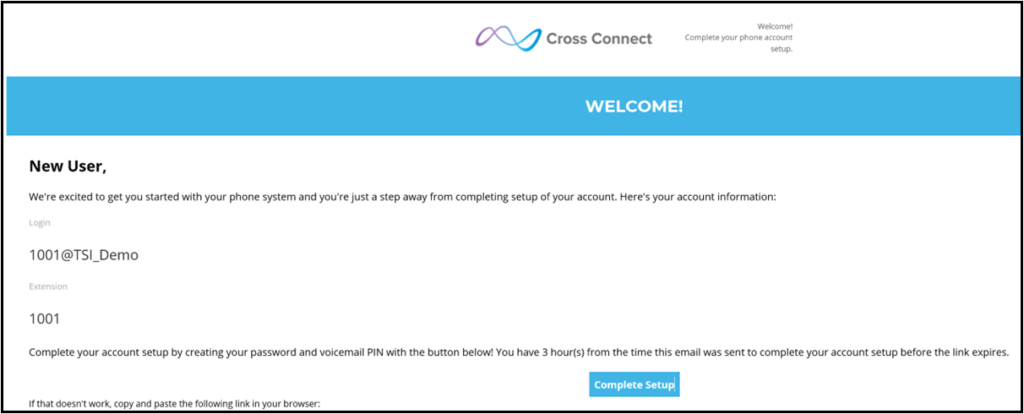
You will receive a Welcome email that includes your username, extension number and your personal direct dial number (if allocated).
Click on Complete Setup link to create your password and the PIN number that will be used for accessing voicemail. Please note – the Login username and the password that you create will be used to access the mobile app.

Once completed you will be able to log in to the User Portal: https://portal.cross-connect.co.uk
User Portal

Please note that some options may not be visible depending on the Subscription type and options selected by your company
Contact Connect: Contact Centre features. Please see your Administrator for full details (if applicable)
Messages: Access your voicemail and chat messages
Contacts: Co-workers and contacts shared by your company. Filter by site, department or availability
Answering Rules: Change which devices ring when answering a call, how long they ring for, and where the call is directed if left unanswered
Time Frames: Set time periods or answering rules. Note: company-wide rules may already be set
Phones: See your registered devices and their status
Music on Hold: Upload or remove music on hold at the user level (if enabled)
Call History: Incoming and outgoing call history. Filter by date, number or type. Listen/save recordings (if applicable)
Apps: Access enabled apps including:
- Call Connect: Browser based (WebRTC) softphone to make and receive calls
- Video Connect: Video meeting/conference rooms and webinar
- Attendant Console: Simplifies the way a receptionist, operator, or call manager interacts with the call flow of the organisation with ability to handle live calls through drag-and-drop interface
- Analytics: Live Contact Centre reporting dashboards
- Profile: Select your name in top right corner to access
- and amend your Profile
Call Connect (Browser-based Softphone)
Call Connect is a Web-RTC “softphone”, meaning that it is browser-based and no software is required to be installed. Access either via ‘Apps’ in the user portal or direct via the following link: www.cross-connect.co.uk/webphone
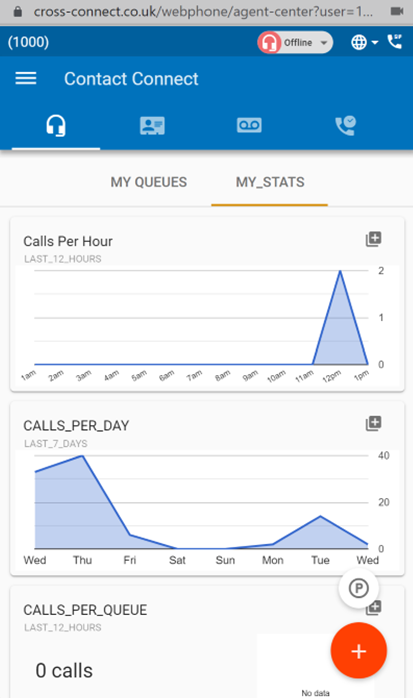
Call Connect opens in a minimised app view, but can be expanded to access all features. Please note that depending on the device and browser used Call Connect may open in the full view by default.
When first launching Call Connect the browser will prompt you to grant access to the microphone.
Place a call
In the bottom righthand corner of the screen, click on the icon to open the menu options. Then click on the dial pad to place a new call.
Dialing can be performed by either clicking directly on the numbers in the dial pad, or by typing numbers from a keyboard. When dialing is complete, press the green dial icon on your screen, or enter on your keyboard, to begin the call.
Screen Layout
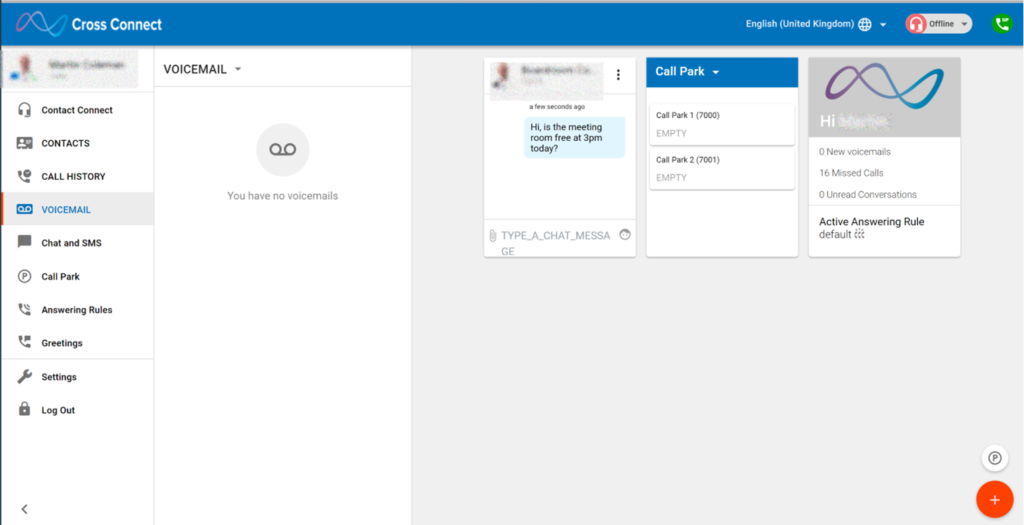
In the expanded view multiple cards can be displayed at a time, including chat and active calls. Cards have drag and drop capability. To minimize a card, click on the (X) in the top left-hand corner of the card.
Contacts
The Contacts screen displays other users in the organisation as well as any contacts that have been added in the Portal. Organisation contacts show presence (indicated as a green, red or gray circle) and favourite contacts are indicated with a star.
Mobile Apps
iOS and Android apps for smartphones or tables can be installed from the following:
Google Play Store: search for ‘Cross Connect’
Apple App Store: search for ‘Cross Connect Mobile’
For further information see the article “Cross Connect Mobile: iOS App“