
The integration features available with Microsoft Teams include:
- Search and Call Teams Adaptor
- Show, Add, Pop CRM contact for incoming call
- Teams as preferred dialing device
- Open Microsoft Teams chat from Presence window
- Show Teams avatar image in Presence window
- Show co-worker Teams Availability status in Presence window
- Publish “In a call” state to Microsoft Teams (Beta feature)
Search and Call (Teams Adaptor app)
The Search and Call app for Microsoft Teams can be installed and used by any Integrator user.
Once installed, the Search and Call app will offer the Integrator Address Book search functionality from within Teams, and allow users to click to dial from within Teams.
NOTE: The Integrator software must be active and connected to use the Teams Search and Call app.
Enter a contact name to find and click “Search”

Matching entries are found from the Cross Connect User directory and integrated address book:
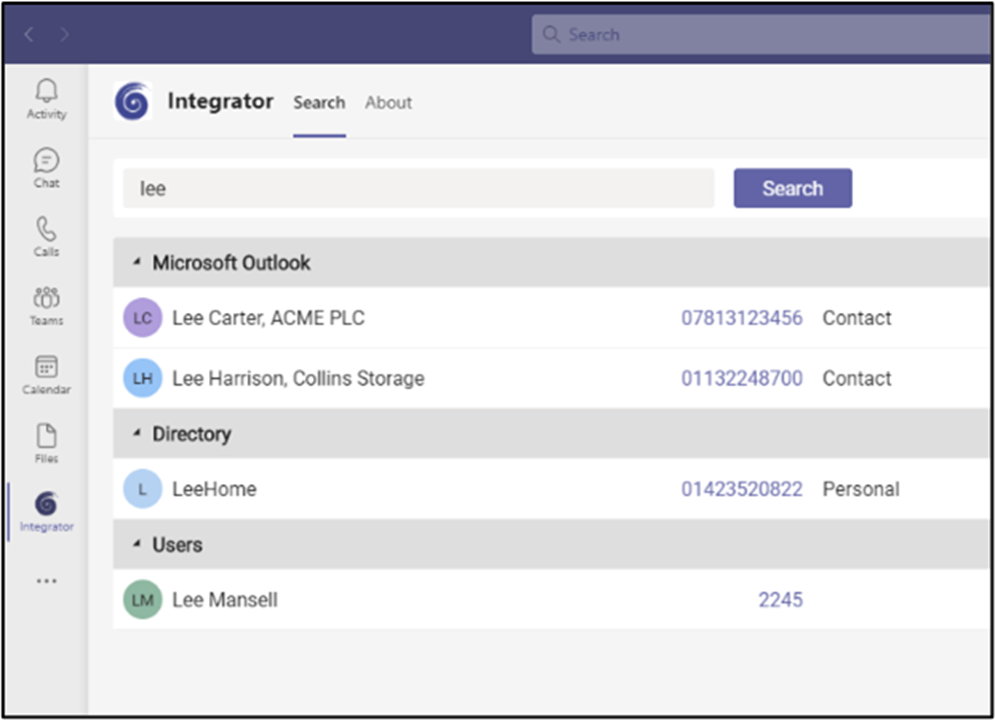
Click on the number to dial.
Show, Add, Pop CRM contact for incoming call
When the Microsoft Teams user receives an incoming call via thei direct routing service, Integrator users can view contact information for any matching entries from any integrated address books. This contact information will be within either the Preview Window or the Call Toolbar notification window.
Teams as preferred dialing device
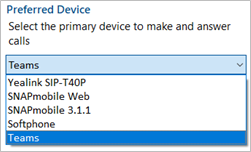
When the Cross Connect user has a direct routing service available for Microsoft Teams, subject to licence, Integrator users can select “Teams” as their Preferred Device, used to make and receive calls.
In Tray mode, the Preferred Device icon offers a drop-down menu selection from the devices available.
In AppBar mode, the Preferred Device drop-down menu is displayed within the “Calls” window.
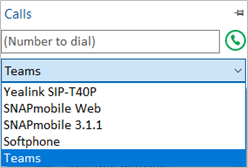
Outgoing calls initiated from Integrator will be passed to the Teams client which will prompt the user to begin the outgoing call:

NOTE: Incoming calls to the Teams client cannot be answered by Integrator – use the Teams incoming call notification to answer calls.
Open Microsoft Teams chat from Presence window
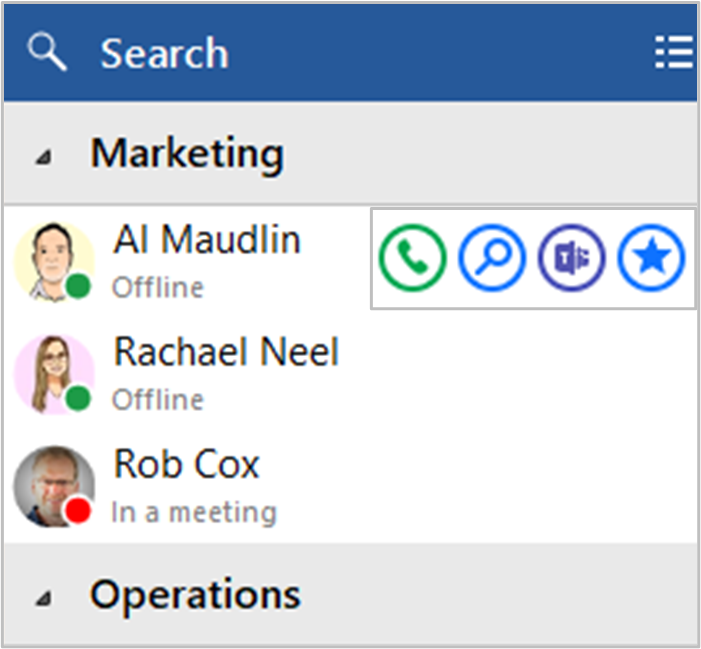
Integrator users can open a Teams chat conversation from within the Integrator Presence window, using the slide out menu that appears when hovering over a contact icon.
(the conversation takes place within Microsoft Teams)
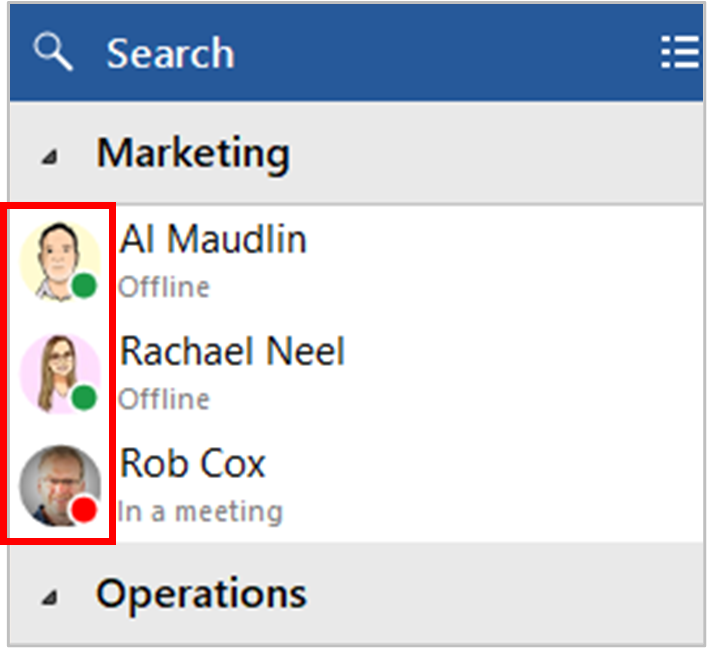
Show Teams avatar image in Presence window
For Integrator users, co-worker avatar images are displayed against each User’s contact icon within the Integrator Presence window.
Show co-worker Teams Availability status in Presence window
Presence with Teams Availability
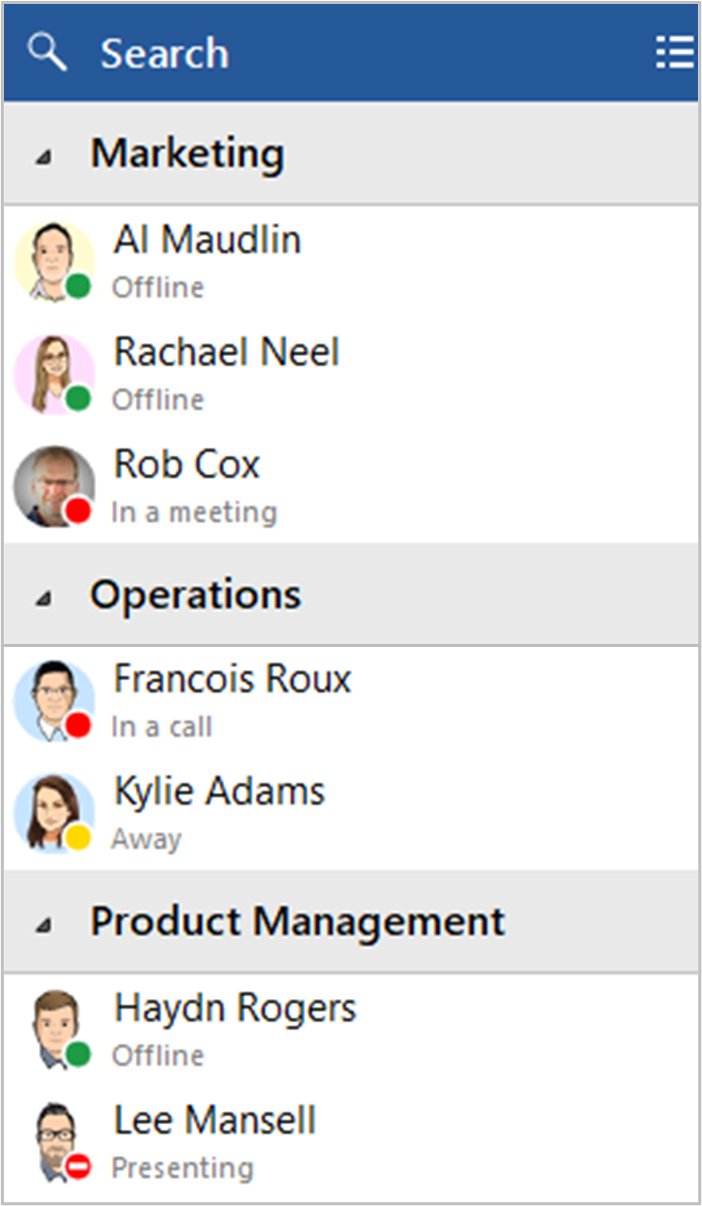
For Integrator users, co-worker availability is displayed as a combination of Cross Connect extension status and Microsoft Teams user Availability status, indicated by a mixture of icon colour and status text:
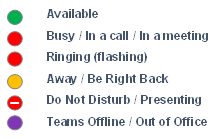
NOTE: An active call via the Cross Connect extension will take precedence over Teams Availability status