Cross Connect Softphone is a mobile app available for iOS and Android to make and receive calls from your extension.
Installation
Cross Connect Softphone can be installed from either the Apple App Store or Google Play. Simply search for ‘Cross Connect Softphone’ and install.
Alternatively in the Cross Connect portal (www.cross-connect.co.uk) select the Phones tab and choose Cross Connect Softphone and click on the relevant app store or QR code

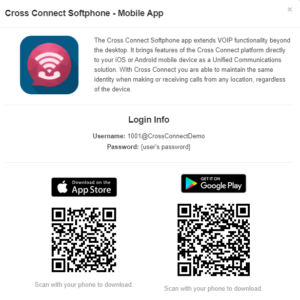
The links are also available in the Cross Connect Welcome email.
Your username and password for Cross Connect Softphone is the same as for logging in to Cross Connect.
Using the app
As soon as you are logged in to the app it becomes an ‘end point’ for your extension. Any calls you receive will ring on the app as well as Desk Phone (if applicable) and Call Connect browser softphone (if logged in) and you can answer on any device.
Any calls you make from the app will display the telephone number assigned to your extension.
Keypad

The app opens on the Keypad menu option.
Simply enter the number you wish to call and press the green Call button. You will be given the option to save the number to your contacts before you dial, if not already a contact.
Your name and extension is displayed in the top left corner; a number will show how many voicemails you have waiting (if any). Press the call voicemail button (to the left of the green Call button) to dial your voicemail. For more information read Voicemail.
When you make a call the screen will change to show the below options.
i – provides information about the call that can be useful for troubleshooting call quality issues, such as jitter.
Keypad – opens a keypad for DTMF, such as selecting an option on an auto attendant.
Hold – places the caller on hold
Transfer – ‘blind’ transfers the call i.e. as soon as you select the destination the call is transferred. Once you press Transfer the Keypad screen will open. Either dial the number you wish to transfer to, or select a Contact or Quick Dial.
Add Call – start a 3-way call by inviting another person into the call by dialling a number or selecting a Contact or Quick Dial.
Attended Transfer – as for Transfer, but with Attended Transfer you will speak to the person you are transferring to so that you can advise them who is calling and what the call is about. When you hang up the call will be transferred.

Do Not Disturb
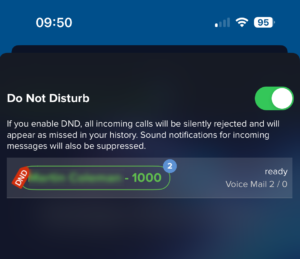
Click on your name in the top left corner of the Keypad tab to open the below screen. Click the toggle switch to enable/disable DND.
Note: this will apply DND on Cross Connect Softphone only to stop you receiving calls to your mobile. Your Deskphone and/or Call Connect webphone can still receive calls unless DND is activated on them.
Call History
The Call History tab shows you a record of your incoming and outgoing calls, and missed calls. Click on a name/number to start a new call.

Contacts
The Contacts tab shows all of your mobile phones contacts and also Office365 contacts (if applicable).
Click on + to add a new contact.
Click on an an existing contact to see all saved details. The Ringtone for the contact can be edited to be a unique ring tone so you instantly know who is calling you.

Quick Dial
The Quick Dial tab shows all of your colleagues on Cross Connect and their Presence status. In the example below you can see all users are off calls except for the 1st contact who currently has an incoming call Ringing, so is unavailable to be dialled.
Simply press on a colleague to call them.

Browser
This tab displays the Cross Connect Knowledgebase
Settings
Access Settings using the cog icon on the Keypad tab.
Account setup – if you change your Cross Connect password you will need to change it in this section on Cross Connect Softphone.
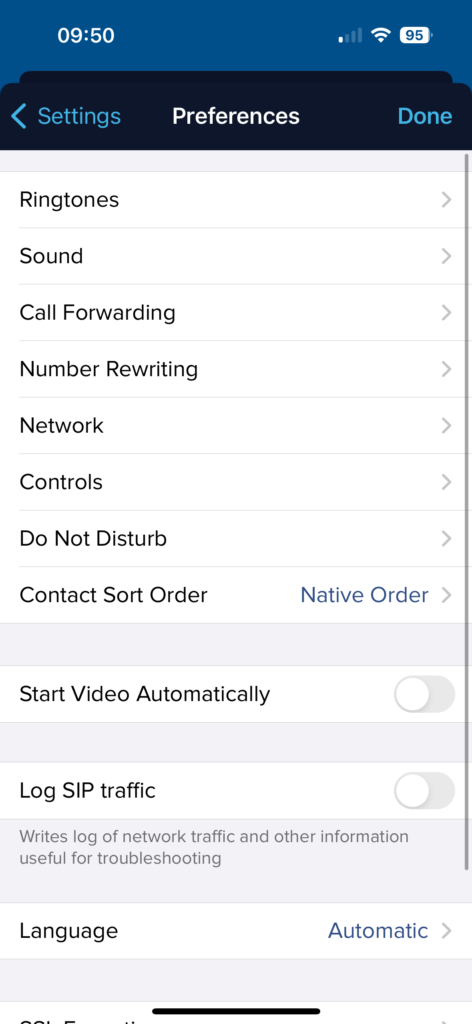
Preferences – your Ringtone can be selected here, as well as several other options such as Call Forwarding.
The Do Not Disturb setting allows you to set rules for DND to automatically restrict calls being received on Cross Connect Softphone, such as outside of office hours.
The default settings will work for most users – only make changes if you know what you are doing!
If you do make changes, such as Call Forwarding, please be aware that this will effect calls to your Deskphone and/or Call Connect webphone.